Documentation Deprixa Pro - The Integrated Courier & Logistics System that Will Boost Your Business

Deprixa Pro v8.5: The Integrated Courier & Logistics System to Boost Your Business

We extend our heartfelt gratitude to all our valued customers who have purchased this exceptional script, as well as those who are considering making a purchase. We are committed to providing continuous updates, which you will receive free of charge. Moreover, we highly value your questions and concerns, and we are always ready to assist you. Thank you for choosing us.


Courier DEPRIXA PRO is a software specifically designed for companies engaged in online package and purchase management. It offers a comprehensive logistics monitoring system for storage and cargo handling, ensuring efficient delivery to the final destination. The software incorporates modules that facilitate automated billing based on the cargo's dimensions, weight, and shape.

One notable advantage of Courier DEPRIXA PRO is its web-based nature, enabling users to access it from a PC, tablet, or smartphone with an internet connection. This flexibility ensures seamless accessibility and convenience for our users.

PDO (PHP Data Objects) is an essential component of PHP, providing a consistent and efficient way to manage database connections and handle data across various database engines.

Deprixa Pro is developed using native PHP and PDO, leveraging the power and elegance of this programming language. However, it’s crucial to ensure that specific extensions are enabled on both local and web servers for the script to function correctly. Below is a list of required extensions:

Requirements:
PHP 8.2 – 8.4 Recommended: PHP 8.4
Curl Enabled
helpers/.lic File Permission
helpers/license_lb_helper.php File Permission
JSON PHP Extension
OpenSSL PHP Extension
PDO PHP Extension
XML PHP Extension
Ioncube Loader
Not required — 100% Open Source

Download files

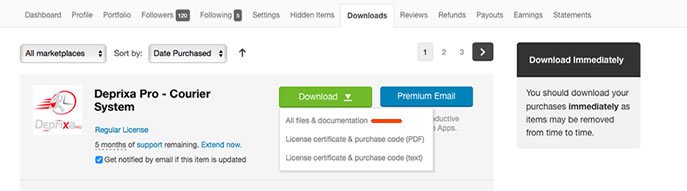
Log in to your Codecanyon account and download the Deprixa Pro file.
Upload files

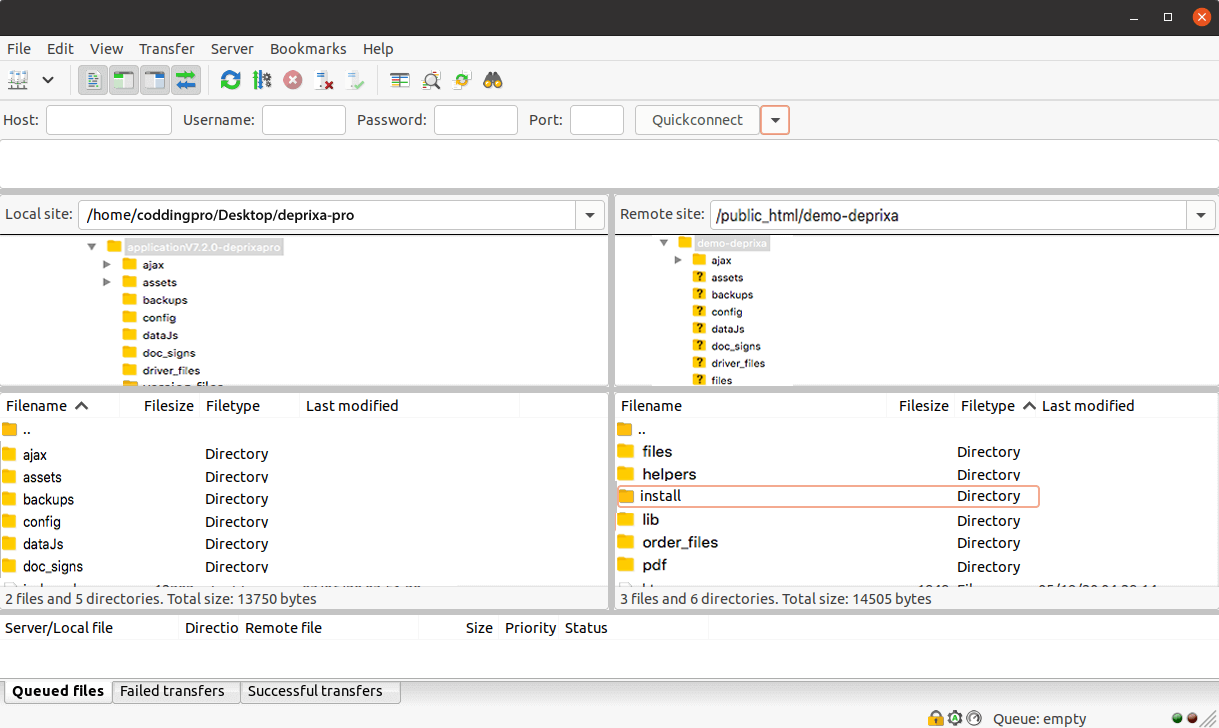
Using an FTP client or directly on your server, upload all the files from the application folder.
Important
  • File permission:
    • STEP 1: Copy/Upload all files and folders from the application folder to your web server using cPanel or FTP. If you are installing Deprixa Pro on your root domain (e.g., example.com), upload the files directly to the root directory (/public_html/). If installing in a subfolder (e.g., example.com/deprixa-pro), upload them to the subfolder (/public_html/deprixa-pro/).
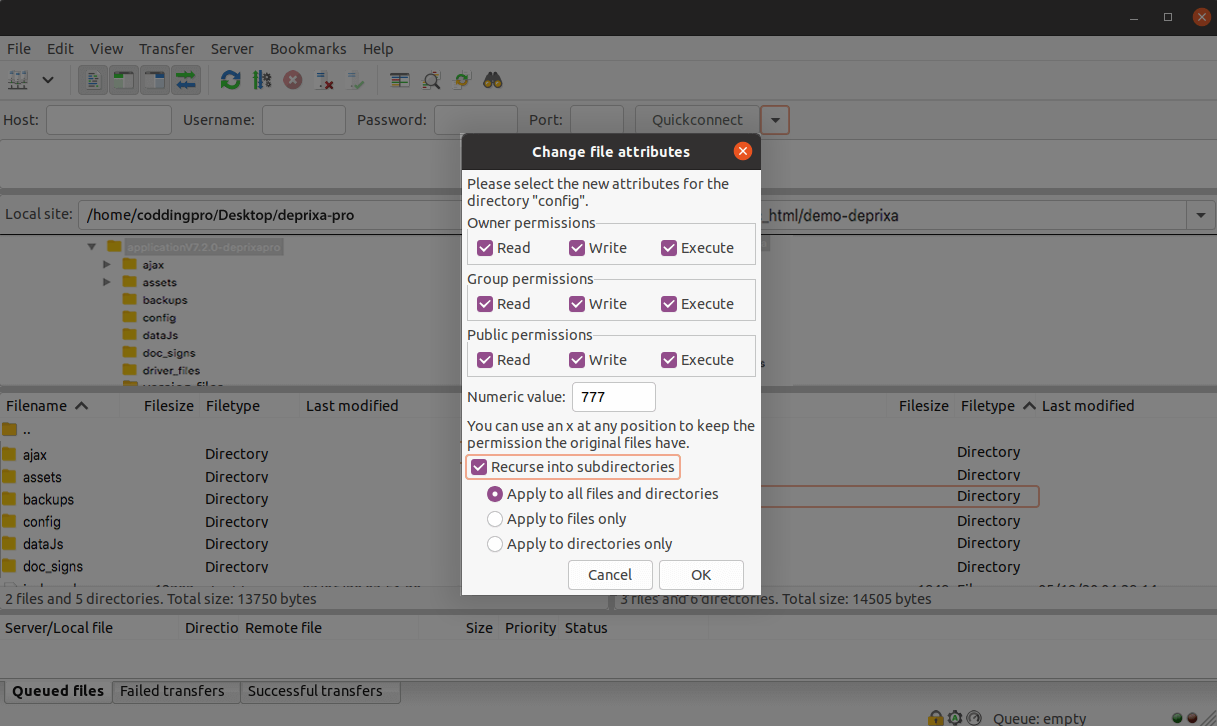
    • STEP 2: The "config" and "install" folders must have write permissions, so assign 777 permissions to these folders.
    • STEP 3: After completing the above steps, access your hosting control panel, create a MySQL database and a database user, and grant the necessary permissions to the user.
Create database

Create a MySQL Database via your web hosting provider's control panel (e.g., cPanel). Once created, remember the following information:

  • Database Name
  • Database Username
  • Database Password
  • Database Host


Deprixa Pro Installation Video Tutorial

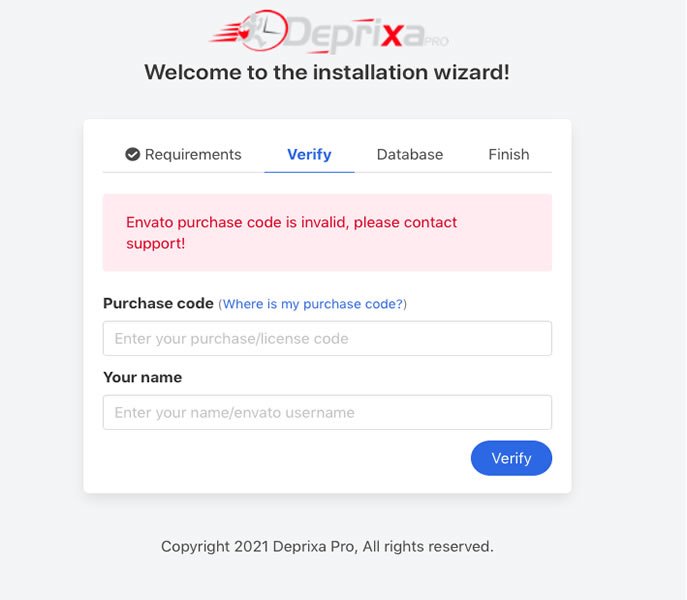
Envato purchase code is invalid, please contact support!
When this error occurs, it could be due to several reasons:
  • Incorrect purchase code or user
  • Invalid or blocked purchase code
  • Invalid or incorrect Codecanyon user

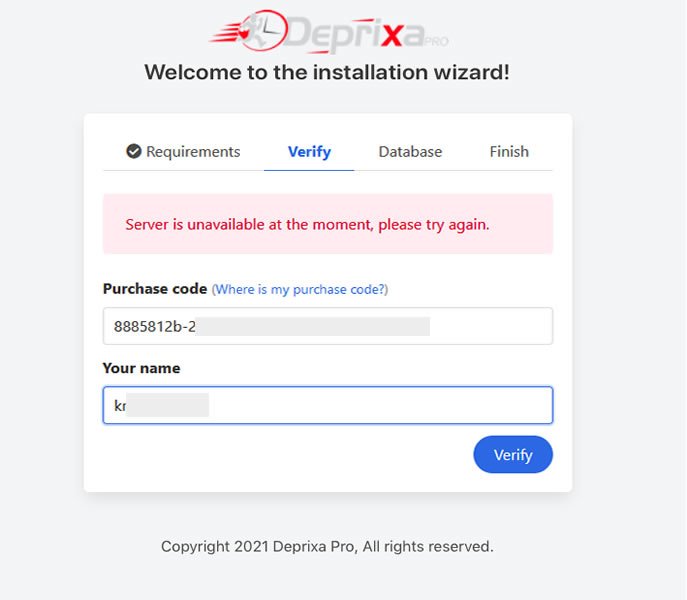
Server is unavailable at the moment, please try again.
This error can occur for several reasons:
  • Slow internet connection during verification
  • IP address of the client's server is blocked; contact your hosting provider for assistance
  • Some servers in specific countries may block connections from other countries, preventing API verification. Contact your hosting provider to remove the restriction.

General Company Settings

PHPMailer offers many advantages over PHP’s core mail() function, including SMTP SSL encryption, authentication, HTML messages, file attachments, and more.

Additionally, PHPMailer is easier to use than mail() and provides a clean, readable object-oriented syntax.
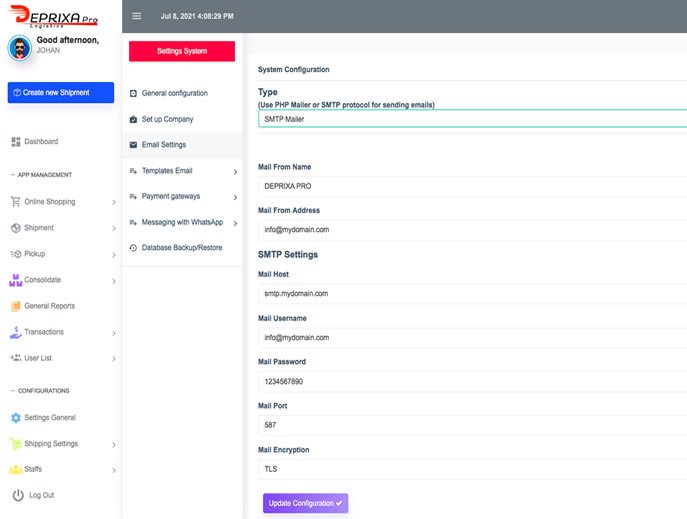


Using PHPMailer with Hostinger SMTP

Once DEPRIXA PRO is installed on your web server, you can configure SMTP as follows:
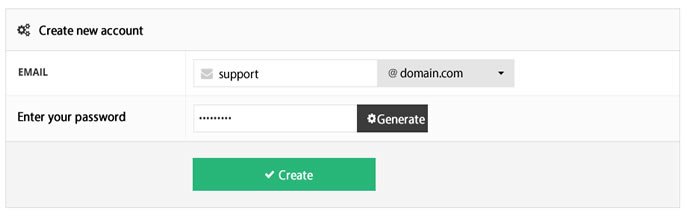
  • STEP 1: Create an email account through your hPanel, then go to Email account -> Create a new Email account. Fill in the email address and set a password, then click Create.

  • STEP 2: After creating the account, note your SMTP data in the same section:


SMTP Mail Configuration Details
  • Mail Address: support@domain.com
  • Email Password: 1234567889
  • Mail Host: smtp.domain.com
  • Mail Port:Recommended 587
  • Mail Encryption:Recommended TLS

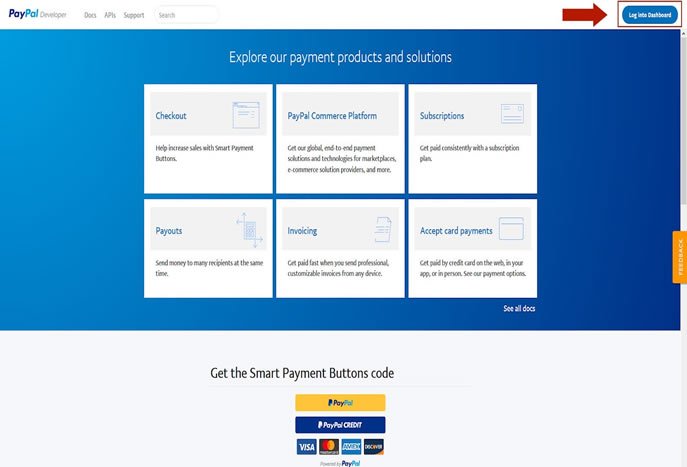
To get the Client ID and Secret Key from PayPal, you need a PayPal account.

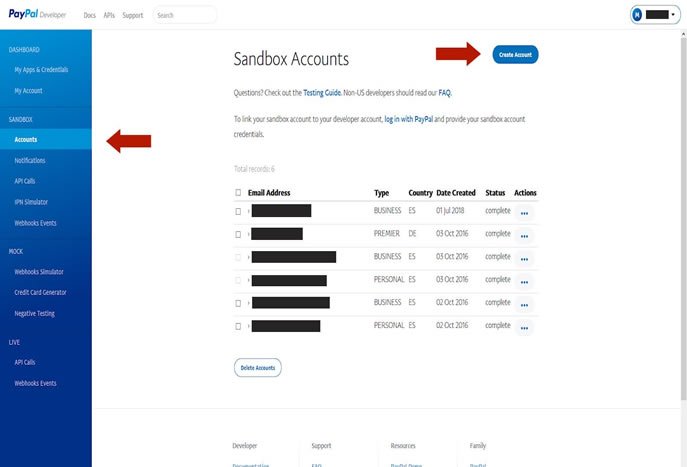
Create Developer (Sandbox) Account

  • STEP 2: After logging in, create a Sandbox Business Account to enable test payments later.

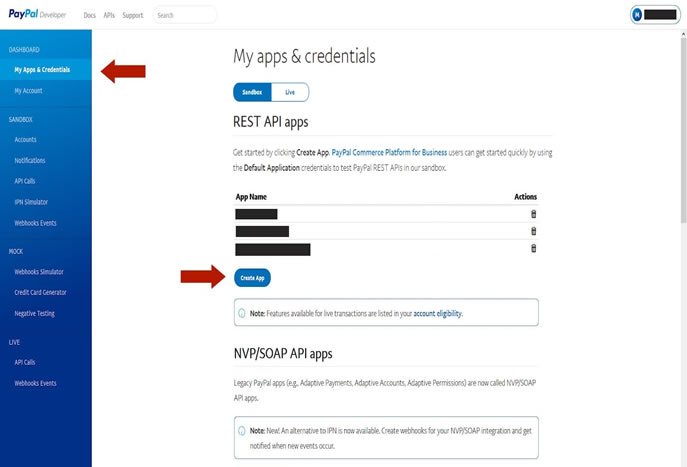
Create PayPal App

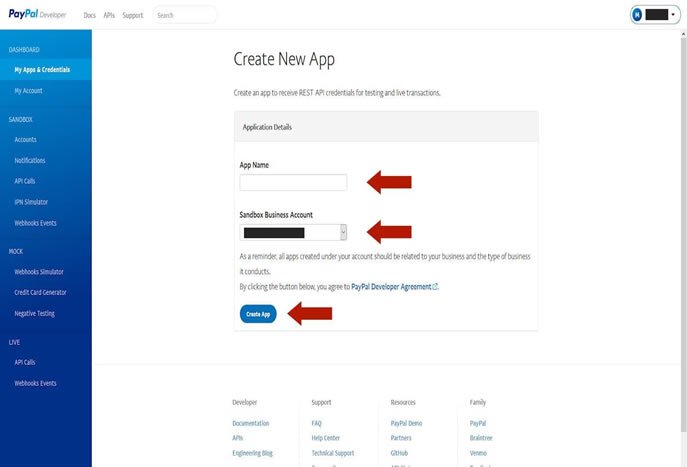
  • STEP 3: After creating a sandbox account, click on "My Apps and Credentials" in the left menu, then click "Create App".

  • STEP 4: Name your PayPal app and select your previously created developer (sandbox) account. Once completed, click "Create App".

PayPal App Client ID and Secret Key

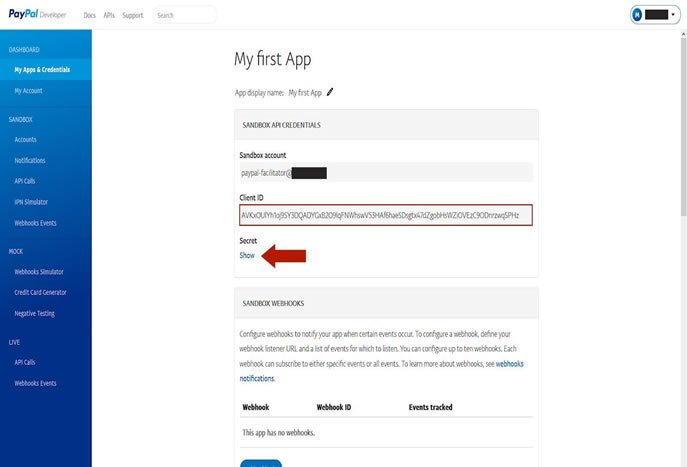
  • STEP 5: Once the app is created, you will see the Client ID and an option to view the Secret Key.

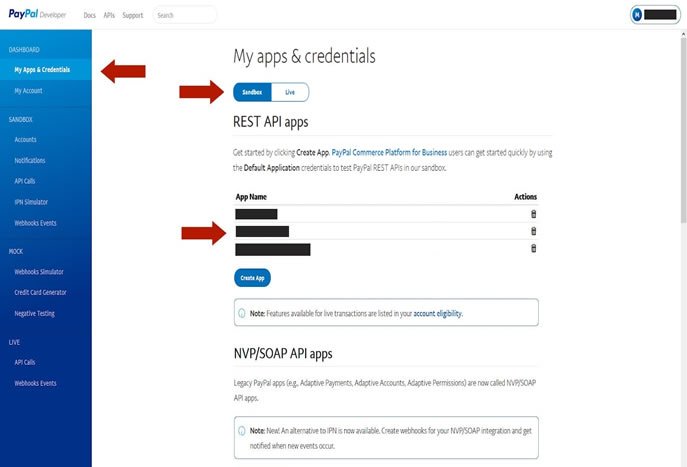
  • STEP 6: To switch between Live and Sandbox modes, click "My Apps & Credentials" in the left menu, then select Live or Sandbox, and click on the desired app to view its Client and Secret keys. Note that Sandbox and Live modes have different Client IDs and Secret Keys.

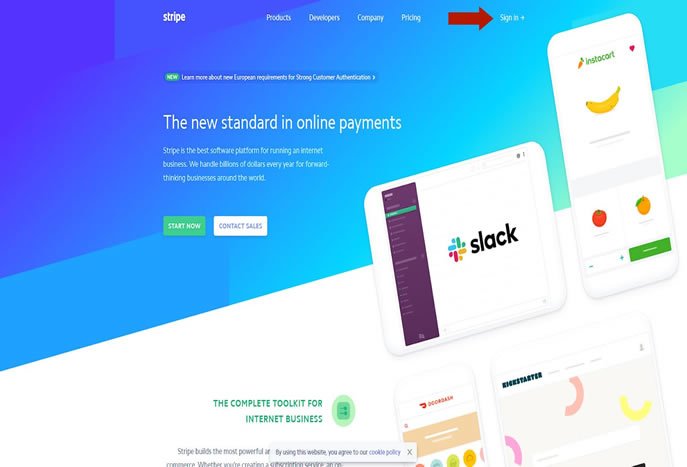
To get the Publishable Key and Secret Key from Stripe, you need a Stripe account (www.stripe.com).

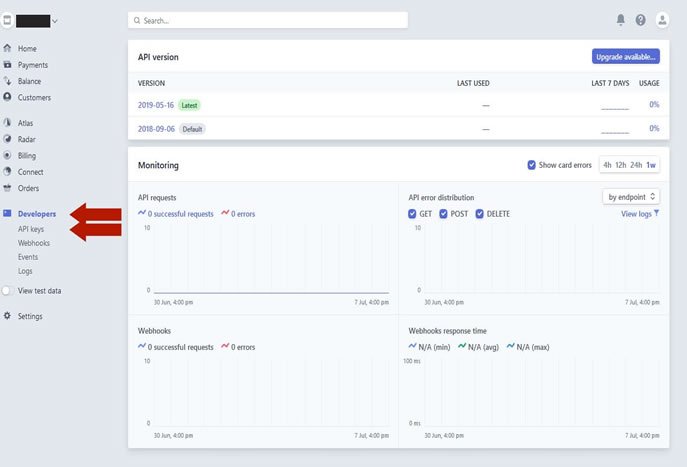
  • STEP 2: After logging into Stripe, navigate to "Developers" in the left menu, then click on "API keys".

Retrieve Publishable Key and Secret Key

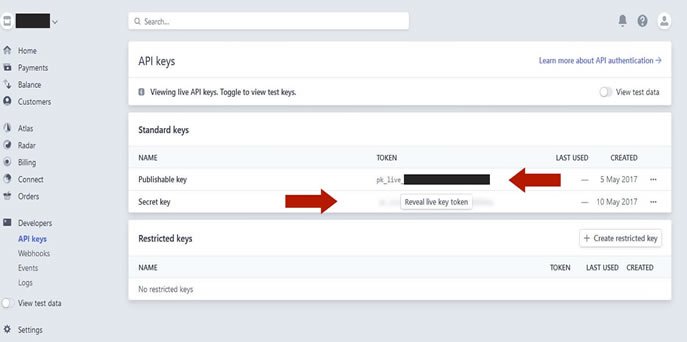
  • STEP 3: Once on the "API keys" page, you will see the Publishable Key and the Secret Key (click "Reveal live key token" to view the Secret Key).

Sandbox and Live Mode

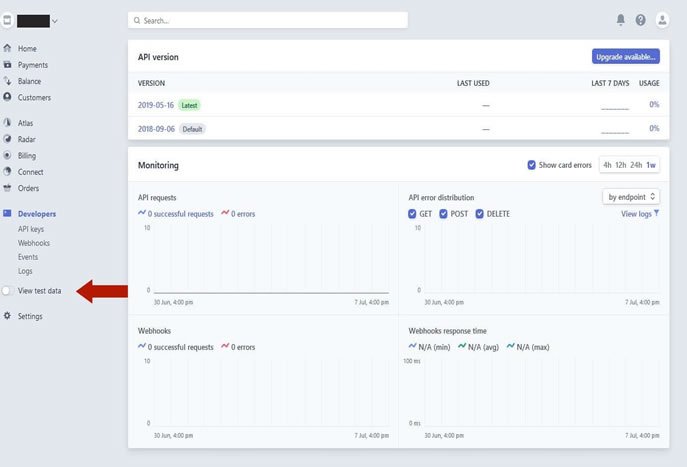
  • STEP 4: To switch Stripe to Sandbox (Test Payments) or Live (Real Payments) mode, click "View test data" in the left menu. Note that Sandbox and Live modes have different keys.

Important to Note
Paystack allows you to test the payment flow before activating your account through its Test Mode. In Test Mode, you can perform transactions using a test card or bank account provided on the test payment page.

How to Get Your Live API Keys

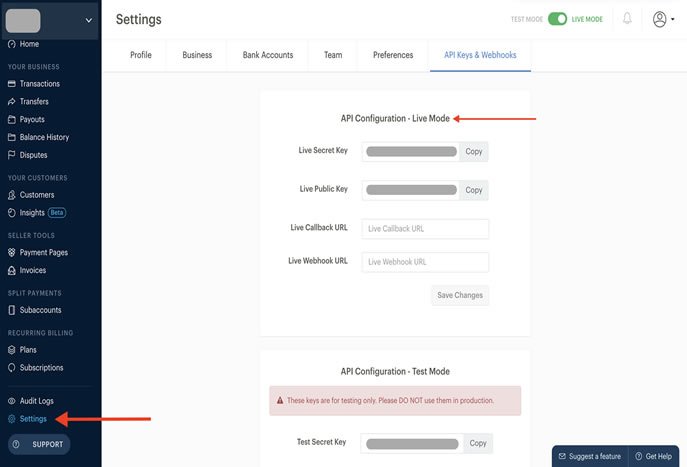
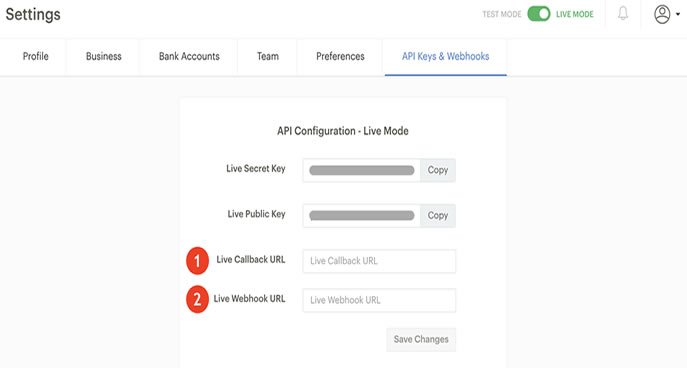
  • STEP 1: In your dashboard settings, click on the API Keys & Webhooks tab. Scroll to "API Configuration - Live Mode" to find your Live Secret Key and Live Public Key.

Important to Note

  • You can only toggle to "Live Mode" if your account has been activated. Follow this link to learn how to activate your Paystack account.

What is the Callback URL?

  • STEP 2: The callback URL is the web address where customers are redirected after a successful payment. This could be your social media page, website, or even a WhatsApp message. Paste the link in the callback URL field to set it up.

Get Started with WhatsApp API

Ultramsg API enables you to integrate your applications with our WhatsApp messaging system. You will find everything you need in your favorite languages, including sample apps for web, iOS, and Android.

The main advantage of our system is its simplicity of implementation. Every message sent from our system has a unique ID, allowing you to receive delivery confirmations.


Send Your First Message!

  • STEP 1: Ultramsg account is required to run examples. Log in or Sign Up if you don’t have an account.
  • STEP 2: Go to your instance or create one if you haven't already.
  • STEP 3: Scan the QR code and ensure that the instance Auth Status is authenticated.
  • STEP 4: Start sending messages.


Demo: WhatsApp API ULTRASMG Message in PHP

Architecture

Deprixa Pro is built on native PHP with PDO, following an MVC-inspired structure without an external framework. This makes it lightweight, easy to customize, and compatible with any shared hosting that meets the PHP 8.4 requirements.


Technology Stack
  • Backend: PHP 8.1–8.4, PDO, PHPMailer, TCPDF, PhpSpreadsheet (Excel import/export)
  • Database: MySQL 5.7+ / MySQL 8.x / MariaDB 10.3+
  • Frontend: Bootstrap 5, jQuery, Feather Icons, DataTables
  • Third-party APIs: PayPal, Stripe, Paystack, Ultramsg (WhatsApp), ClickSend (SMS), Twilio
  • Web Server: Apache (mod_rewrite required) or Nginx with rewrite rules

Request Flow

Every request enters through index.php, which loads the session, authenticates the role via the RBAC layer, and dispatches to the appropriate module controller. Each module handles its own database queries through PDO prepared statements. Responses are rendered through PHP view templates included via the module controller.


Multi-language Support

Language files are stored in lang/. The system supports Spanish (ES), English (EN), Arabic (AR – RTL), French (FR), and Hebrew (HE). The active language is stored in the session and applied globally on every page load.

The main folders and their purposes:

  • assets/ — CSS, JS, images, uploads, logos, and customer profile photos
  • config/ — Database connection, global constants, and environment settings
  • helpers/ — Utility functions, license validation, and session management
  • install/ — Web-based installer (must be deleted after installation)
  • lang/ — Translation files for all supported languages
  • modules/ — All system modules (courier, pre-alerts, warehouse, pick-up, reports, settings, etc.)
  • doc_signs/ — Digital delivery signature files (do not delete)
  • order_files/ — Files attached to shipments
  • pre_alert_files/ — Files attached to pre-alert registrations
  • driver_files/ — Driver profile documents and photos

Important When updating between versions, always restore the upload folders (doc_signs/, order_files/, pre_alert_files/, driver_files/, assets/uploads/) from your backup to avoid losing customer data.

Modules

The core module of Deprixa Pro. Handles the complete lifecycle of a shipment from creation to delivery and payment.

  • Create Shipments: Register sender, recipient, package dimensions, weight, and service mode. Volumetric weight is auto-calculated using the configured divisor.
  • Automatic & Manual Tariffs: Apply tariffs by weight range (origin, destination, state, city, service mode) or toggle manual pricing per shipment. Client-specific special tariffs take priority when configured.
  • Invoice & Label Printing: Generate printable PDF invoices (TCPDF) and shipping labels with barcodes automatically.
  • Status Tracking: Full status history per shipment. Clients track shipments from their panel or via the public tracking page.
  • Excel Import: Import bulk shipments from .xlsx files. Download the template, fill it, and upload it from the admin panel. Includes field validation and error reporting.
  • Online Payments: Clients pay approved shipments from their portal via PayPal, Stripe, Paystack, or cash.
  • Digital Signature on Delivery: Capture a digital signature when marking a shipment as delivered.

Pre-Alerts allow clients to register online purchases they have made from international stores (Amazon, eBay, etc.) before the package arrives at the warehouse. This is the key differentiator between Deprixa Pro and Deprixa Basic.

  • Client Self-Registration: Clients enter the store name, tracking number, description, declared value, and optionally attach the purchase invoice from their portal.
  • Admin Processing: The admin reviews registered pre-alerts, assigns them to warehouse packages, and converts them to shipments when ready.
  • Status Notifications: Automatic notifications sent to the client when the pre-alert status changes (received, in warehouse, dispatched).
  • Reports: Pre-alert reports filterable by client, date, status, and origin store.

The Warehouse module manages packages that arrive at the logistics warehouse before being assigned to a final shipment. The Pick-Up module allows clients to schedule a collection from their address.

  • Warehouse Packages: Register packages by client, dimensions, weight, origin, and location within the warehouse. Link to pre-alerts or create independently.
  • Package Consolidation: Group multiple warehouse packages into a single consolidated shipment with its own tracking number and invoice.
  • Pick-Up Scheduling: Clients request a pick-up from their portal. Admin assigns a driver and confirms the collection time. Driver receives notification and logs the pick-up with a digital signature.
  • Driver Module: Manage drivers, assign them to pick-up or delivery routes, and track their activity log.

Version 8.5 introduces a full Role-Based Access Control (RBAC) system, giving administrators granular control over what each user can see and do within the platform.

  • Super Admin: Full access to all modules, settings, agencies, and users across the entire system.
  • Administrator: Manages operations within the assigned scope. Can configure settings but cannot manage other admins.
  • Agency: Can independently manage its own clients, recipients, shipments, and consolidated packages. Filtered views ensure data isolation between agencies.
  • Employee: Access to day-to-day operations (create/edit shipments, update statuses) without access to financial settings or user management.
  • Client: Access to their own portal: create shipments, register pre-alerts, pay invoices, and track packages.
  • Driver: Access to assigned pick-up and delivery tasks, digital signature capture, and activity log.

Permissions are configurable per role from Settings → Roles & Permissions. Module-level access (view, create, edit, delete) can be toggled independently for each role.

Deprixa Pro 8.5 introduces a powerful tariff engine that calculates shipping rates automatically based on configured rules, eliminating the need for manual pricing on every shipment.

  • Weight Range Tariffs: Define price rules by weight range (e.g., 0–5 kg, 5–20 kg). Each rule can be filtered by origin/destination country, state, city, and service mode.
  • Overlap Validation: The system prevents overlapping weight ranges when adding or editing tariff rules, ensuring clean and conflict-free pricing configurations.
  • Client Special Tariffs: Assign custom pricing to specific clients. When a shipment is created for that client, the special tariff takes priority over the general weight-range tariff.
  • Manual Override: A toggle on every shipment form allows the operator to bypass automatic tariffs and enter a manual price when needed.

Configure tariffs from Settings → Tariffs. Client special tariffs are set from Clients → [Client] → Special Tariff.

The Excel Import module allows administrators to create multiple shipments at once by uploading an Excel (.xlsx) file, dramatically reducing manual data entry for high-volume operations.

  • Step 1 – Download Template: From the import screen, download the official .xlsx template with pre-defined columns (sender, recipient, weight, dimensions, service mode, etc.).
  • Step 2 – Fill & Upload: Fill in your shipment data following the template format and upload the file from the admin panel.
  • Step 3 – Validation: The system validates each row before importing. Rows with errors are flagged with a clear description so you can correct and re-upload.
  • Step 4 – Confirmation: Valid rows are imported and tracking numbers are assigned automatically. A summary report is displayed at the end of the import.

Access from: Courier → Import Shipments.

Maintenance

Deprixa Pro includes a built-in database backup module accessible from Settings → Backup. It is highly recommended to schedule regular backups before applying any updates.

Database Backup
  • Go to Settings → Backup and click "Generate Backup". The system exports the full database as a .sql file to the server.
  • Download the .sql file immediately and store it in a secure external location.
  • For large databases, also use phpMyAdmin or cPanel's built-in export tool.
Files Backup
  • Always backup these folders: doc_signs/, order_files/, pre_alert_files/, driver_files/, assets/uploads/, assets/payment_packages/.
  • These folders contain customer signatures, attached files, logos, and profile photos that are not part of the code repository.
Restore
  • To restore a database backup, import the .sql file through phpMyAdmin or use the MySQL CLI: mysql -u user -p dbname < backup.sql
  • Restore the upload folders by re-uploading them to the server root via FTP or cPanel.

After installation, apply the following security measures to protect your Deprixa Pro installation:

  • Delete the install folder: Remove the install/ directory immediately after installation is complete. Leaving it accessible is a critical security risk.
  • Set file permissions: Upload directories should be set to 755. PHP files should be 644. Never set PHP files to 777.
  • Enable HTTPS: Configure SSL/TLS on your domain. All API keys (PayPal, Stripe, WhatsApp) transmit credentials that must be encrypted in transit.
  • Use a strong database password: Avoid dictionary words. Use a random 16+ character password for the MySQL user.
  • Restrict database user privileges: Grant only SELECT, INSERT, UPDATE, DELETE to the Deprixa database user. Never use a root database account for the application.
  • Session timeout: Deprixa Pro includes a configurable session timeout (default: 24 minutes of inactivity). Adjust it from Settings → General to match your security policy.
  • Keep PHP updated: Always run PHP 8.4 (minimum PHP 8.2). Older versions receive no security patches.

Frequently Asked Questions

Yes. Deprixa Pro runs on any shared hosting plan that supports PHP 8.2+ (recommended PHP 8.4) and MySQL 5.7+ / 8.x / MariaDB 10.3+. The most common and tested providers include Hostinger, SiteGround, Namecheap, and A2 Hosting. Ensure that cURL, PDO, JSON, XML, and OpenSSL extensions are enabled. You can verify this by checking your hosting control panel's PHP configuration or running a phpinfo() file on your server.

Deprixa Basic is a courier-only system: shipments, consolidation, invoicing, tracking, and payments. It does not require IonCube and the source code is 100% open.

Deprixa Pro adds: Pre-Alerts (online shopping registration), Warehouse Package management, Pick-Up scheduling, RBAC multi-role system (v8.5), Automatic tariff tables, Client special tariffs, ClickSend SMS, WhatsApp message templates with full CRUD, Driver module, Digital signatures, and SEO meta tag configuration.

Deprixa Pro ships with Spanish (ES), English (EN), Arabic (AR – RTL), French (FR), and Hebrew (HE). To add a new language:

  • Duplicate the lang/en.php file and rename it to your target language code (e.g., lang/pt.php for Portuguese).
  • Translate all string values in the new file.
  • Register the language in the language switcher configuration (Settings → Language).
  • For RTL languages, add the RTL stylesheet reference by following the Arabic language entry as a reference in the config.

  • Verify that the SMTP credentials in Settings → Email (SMTP) are correct (host, port, email, password, encryption).
  • For Gmail: enable 2-Step Verification and create an App Password. The regular Gmail password will not work with SMTP.
  • Check your hosting firewall. Some providers block outgoing port 465/587. Try switching between TLS (587) and SSL (465).
  • Confirm that the PHP OpenSSL extension is enabled, as PHPMailer requires it for encrypted connections.
  • If using Hostinger or cPanel hosting, use the SMTP details from your Email Account settings, not external provider credentials.

  • Verify that the Ultramsg instance is authenticated: the phone must be connected and the instance Auth Status must show authenticated.
  • Phone numbers must be in international format without the + sign (e.g., 573001234567, not +573001234567).
  • Confirm that cURL is enabled on your server. Ultramsg communication uses cURL requests.
  • Check your Ultramsg plan limits — free plans have message quotas.

Yes. Invoice and label designs are generated using TCPDF and are fully customizable. The template files are located in the modules/courier/ folder (look for files ending in _pdf.php). You can modify the layout, add your company logo, adjust colors, and change the field arrangement by editing the TCPDF drawing calls in these files. Basic PHP knowledge is required for customization.

The company logo, name, and address shown on the invoice are pulled from Settings → Company Information and do not require code changes.

  • Go to Settings → Agencies and create the agency with its name, address, and contact details.
  • Go to Users → Add User, assign the role "Agency", and link the user to the created agency.
  • Go to Settings → Roles & Permissions → Agency and configure which modules the Agency role can access (view, create, edit, delete).
  • Once configured, Agency users will only see clients, shipments, and consolidated packages that belong to their agency — not data from other agencies.

Open a support ticket at ticket.deprixapro.site. When submitting a ticket, always include:

  • Your Envato purchase code
  • Your PHP version and server type (shared, VPS, etc.)
  • The exact error message or description of the issue
  • Screenshots if possible

Response time: up to 2 business days. Support covers installation assistance, configuration guidance, and bug reports. Custom development (new features, design changes) is not included in the standard support scope.

Deprixa Pro - UPDATE

In this new version of Deprixa Pro 8.5, the entire script has been modified to correct modules and add new functions, improving the structure in PHP and PDO. New database tables and fields have also been created.


For developers who have modified previous versions with their own modules, updating can be challenging because it’s not a simple copy-and-replace process. Due to extensive changes throughout the script, basic programming knowledge is essential for making any updates.

How to Update Files and Folders?

If you are using an older version, make a backup of all files and your database, then follow these steps:

  • Download the new version and perform a full installation on your server to avoid errors.
  • Retrieve the following folders from your backup and paste them into the new installation: doc_signs, driver_files, files, order_files, pre_alert_files. This will restore your photos and attachments.
  • Copy the assets/css_main_deprixa/images folder from your backup and paste it into the new installation to retrieve login images and logs.
  • Copy the assets/payment_packages folder from your backup and paste the payment attachments into the new installation.
  • Copy the assets/uploads folder from your backup to retrieve images like logos and customer profiles. Ensure the logo link matches in the settings database.

How to Update the Database from a Previous Version?

Basic programming knowledge is required for this critical update. The new database contains new tables and fields, so follow these steps to ensure compatibility with your previous version:
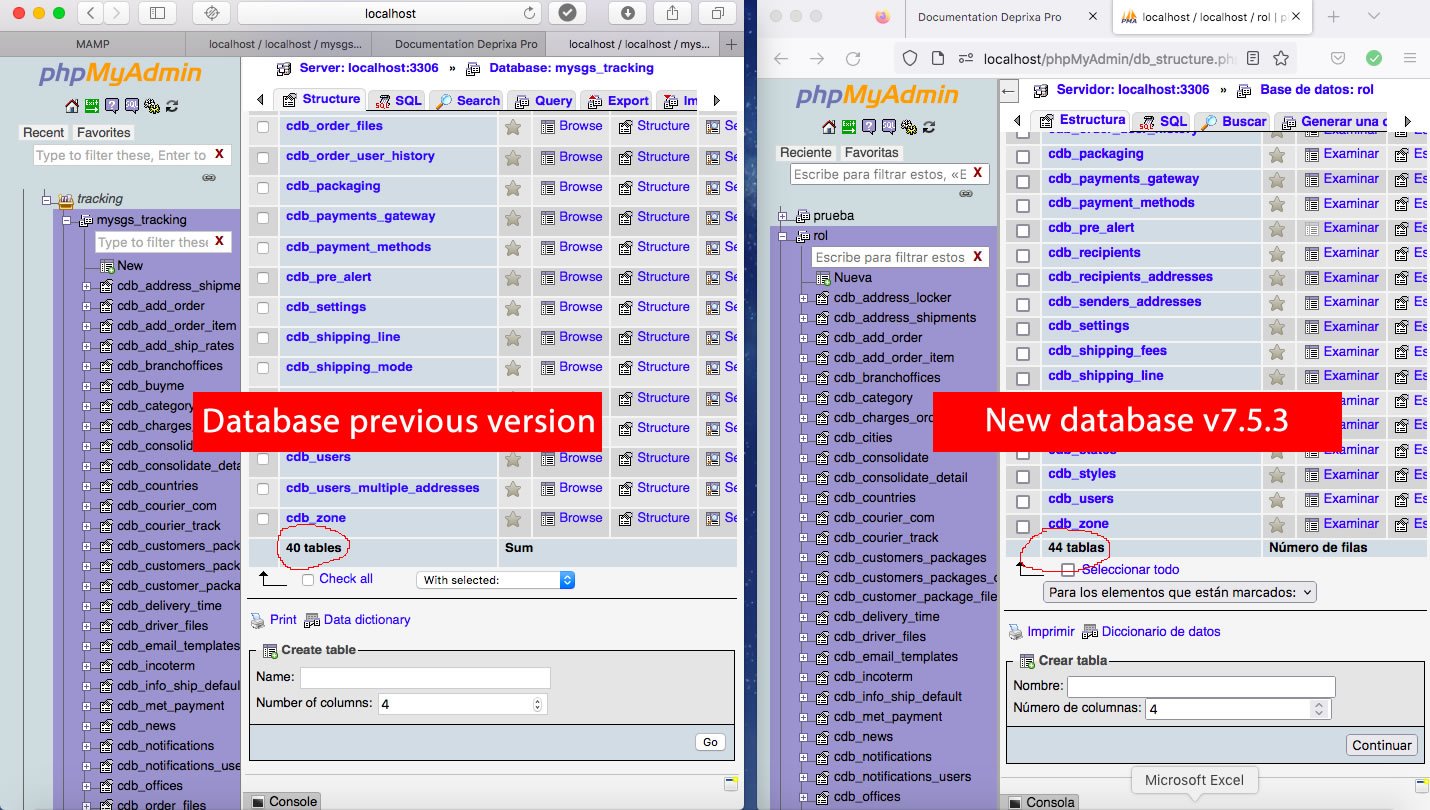
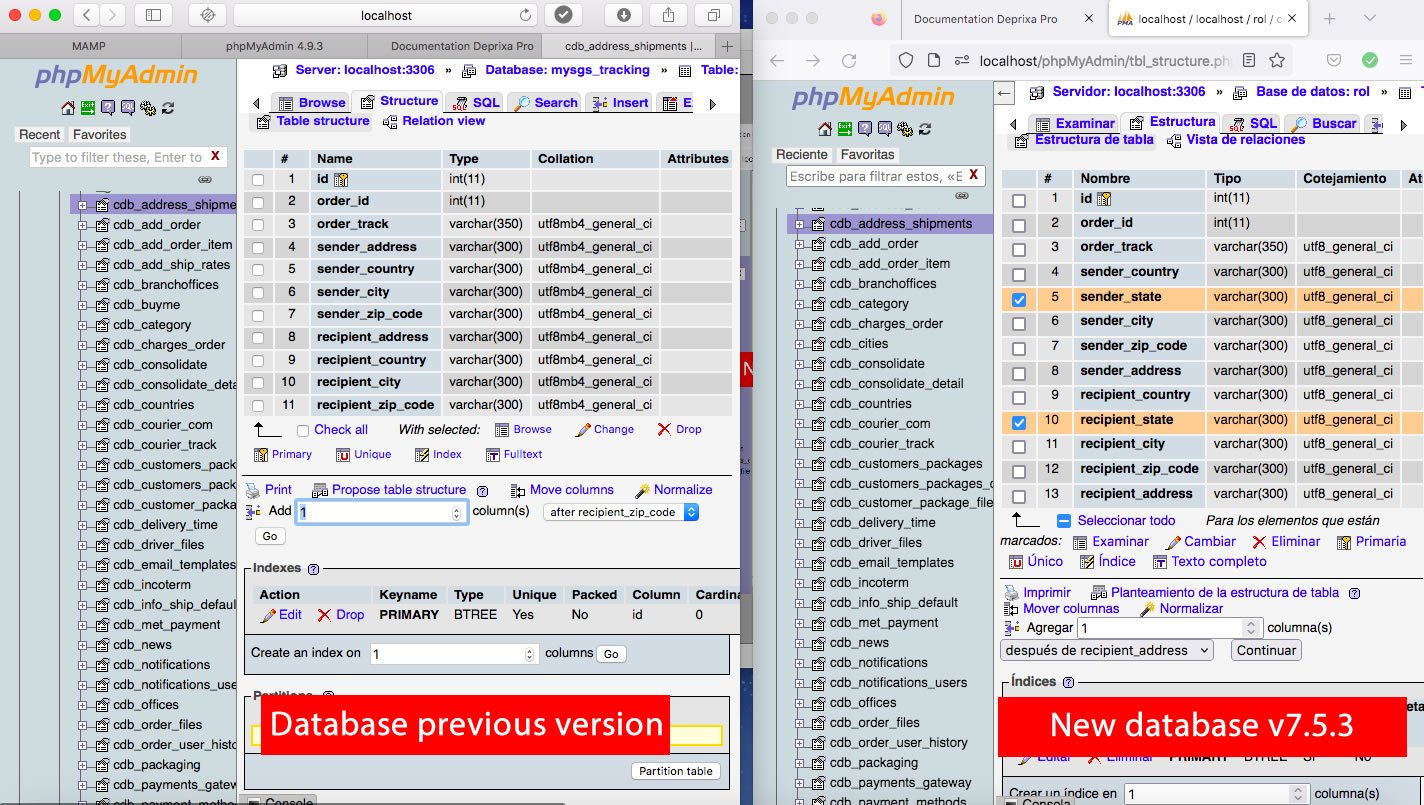
  • Create two sample databases on your localhost or web server. Upload your previous version's database to one, and the new version's database to the other. Compare the two databases to identify any missing tables.
  • Identify and export any missing tables from the new database. Import these tables into your previous database.
  • Identify any new fields in the tables of the new database. Add these fields to the corresponding tables in your previous database. Ensure all configurations (name, type, collation, attributes, null) match to avoid errors.

  • Note: Review both databases thoroughly to identify any new fields that need to be added to the previous version's database.

PKN®¹8H H